
As people switch to new phones more often, moving WhatsApp safely becomes stressful. Each chat holds important memories, and losing them can feel confusing. Many users struggle with manual methods that fail or break their backups midway. That’s where Dr.Fone – WhatsApp Transfer helps by guiding each step and reducing guesswork.
It offers a simple way to move all messages and even attachments without technical steps. Instead of worrying about complex settings, users follow easy instructions that work. So, this article reviews how well the tool fits real-world needs and if it makes transfers easier.
Table of Contents
Part 1: Top Key Capabilities of a Good WhatsApp Transfer Tool
A good tool supports clear steps and even success across different phone systems. This matters most when people transfer WhatsApp from Android to iPhone without hassle. Thus, the table below breaks these features into clear checks for quick comparison:
| Feature Area | What a Good Tool Should Offer | Why It Matters |
| Complete Data Move | Transfers chats, photos, videos, voice notes, and documents | Prevents missing memories and broken conversations |
| Cross-Platform Support | Works smoothly between Android and iOS devices | Makes switching phones less stressful |
| No Phone Reset Needed | Runs on already set up phones | Saves time and avoids data loss |
| Data Safety | Uses local, secure transfer instead of cloud uploads | Protects privacy and reduces leak risks |
| Stable Performance | Does not freeze or stop near completion | Avoids repeating long transfers |
| Speed Handling | Manages large chat histories without slowing down | Helpful for users with years of data |
| Device Compatibility | Supports new Android and iOS versions | Ensures long-term usability |
| Extra Control | Backup, restore, and export options are available | Adds flexibility beyond basic transfer |
Part 2: Why Use Tool-Assisted Workflows for OS Migration?
When changing your phone’s operating system, manual steps lead to confusion. Yet, tool-assisted workflows automate transfers, reducing mistakes during the process. They help users understand how to transfer Android phone to iPhone. So, below are some reasons why tool-assisted workflows make OS migration easier and safer:
- Smooth Setup: Tools guide each migration step, preventing confusion caused by mismatched instructions. Users follow on-screen cues that adapt automatically to their phone or OS type.
- Safe Data: The transfer engine encrypts chats and media, preserving security. Local transfers avoid cloud leaks, giving users private control over personal information.
- Faster Transfers: Optimized workflows minimize waiting times for large chat backups and media. The system compresses and transmits, keeping transfers smooth on both ends.
- Flexible Options: You can transfer selected chats or full histories based on your priorities. This customization saves space and tailors the migration to what matters.
- Verified Success: Post-transfer reports confirm chat volume and contact mappings. Seeing exact counts assures users that their data has moved safely.
Part 3: How Does Dr.Fone – WhatsApp Transfer Work?
Dr.Fone – WhatsApp Transfer targets users overwhelmed by risky manual migrations during phone switching. It supports smooth chat migration between Android 16 and iOS 26 devices. Each step involves local encryption, keeping your files private and protected from leaks. During migration, Dr.Fone shows clear progress updates, ensuring full control through transfer.
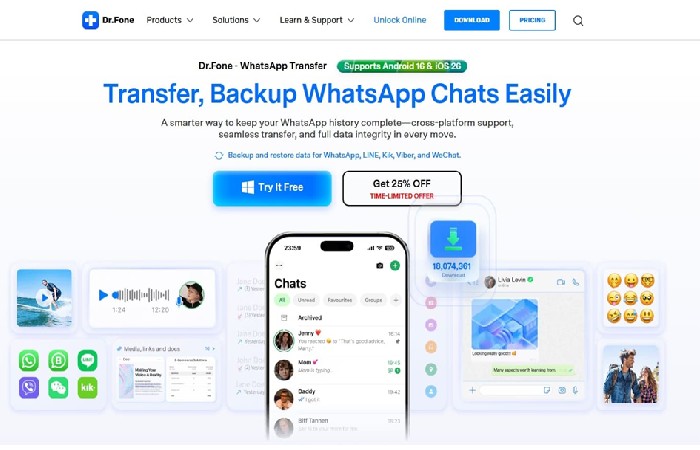
Moreover, the software delivers speed that’s up to 96% faster than standard manual methods. You can also choose selective WhatsApp transfers for specific chats, attachments, or contact lists. This tool works even with the latest iPhone 17 and Samsung S25 series models. Apart from that, export features convert backup data into HTML or PDF for organized sharing.
Key Features
- Business Compatibility: Supports WhatsApp Business accounts for smooth professional data transfer.
- WhatsApp Backup: Creates complete WhatsApp backups to prevent accidental data loss anytime.
- Merge Chats: Combines old and new WhatsApp messages without overwriting existing conversations.
Detailed Guide to Use Dr.Fone – WhatsApp Transfer for WhatsApp Migration
Go through the given simplified guide to find out and transfer WhatsApp from Android to iPhone:
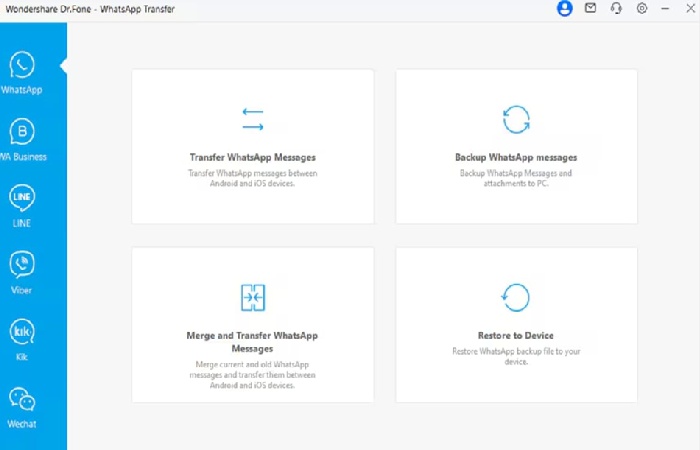
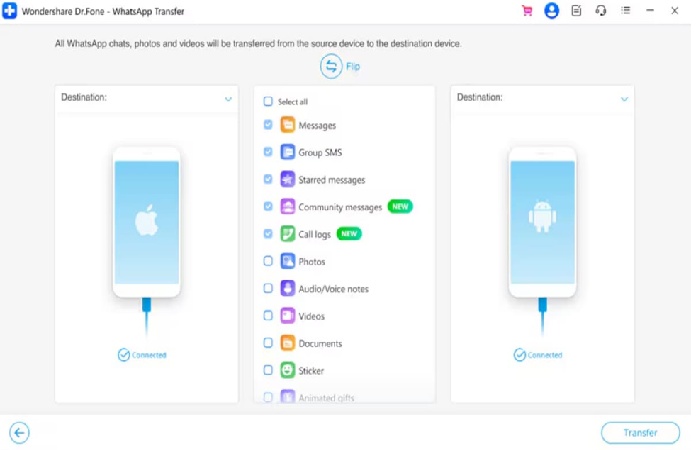
Open the program to enter the “Toolbox” tab and choose “WhatsApp Transfer.” Next, select “Transfer WhatsApp Messages” and plug both phones into the computer.
Step 2. Pick WhatsApp Content to Move
Once the data list appears, mark the WhatsApp items you wish to transfer. Upon selecting them, click “Transfer” to let the tool prepare the chosen content.
Step 3. Complete the WhatsApp Migration
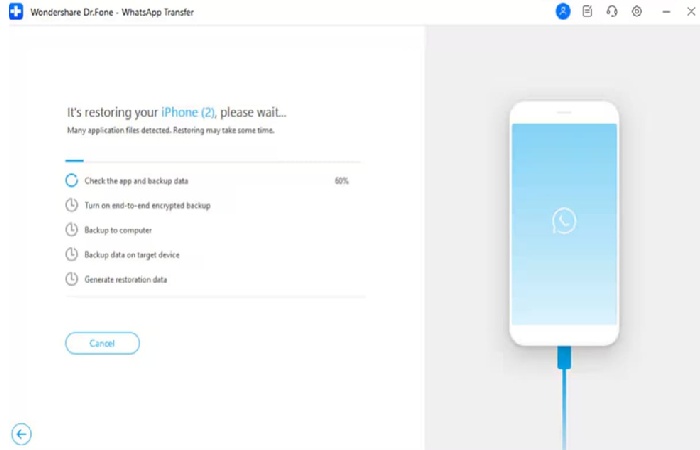
The software will begin copying your chosen chats and media to the new phone.
Part 4: 5 Scenarios Where Users Experience Significant Value
Many people realize the true value of a transfer tool only during real challenges. Different users gain value from transfer tools depending on their habits and risks. These scenarios highlight moments where guided workflows reduce stress and failures. The following points explain when users experience the strongest practical value benefits:
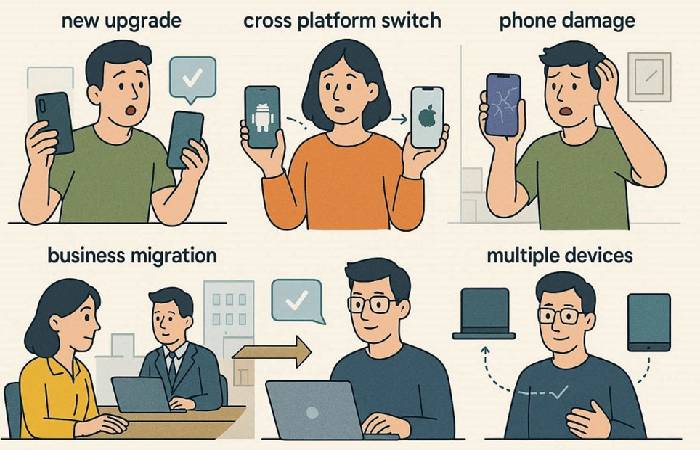
- New Upgrade: When upgrading to a newer phone, a quick WhatsApp migration saves precious time. It ensures all messages and multimedia appear on your upgraded device.
- Cross-Platform Switch: Users struggle while learning how to transfer Android phone to iPhone. Therefore, Dr.Fone automates each step, avoiding mismatches and preventing sync interruptions.
- Phone Damage: A broken device shouldn’t mean lost chats or unfinished conversations. The tool retrieves conversations from backups stored locally or connected devices.
- Business Migration: WhatsApp Business owners need the complete history for legal or continuity. Dr.Fone preserves both customer messages and media, keeping team chat traceable.
- Multiple Devices: Some users manage two phones for travel or separate work and personal life. The software merges chats across both devices without overwriting existing ones.
Part 5: What Should You Check in Post-Transfer Validation?
After completing your transfer, the next step is to confirm that everything moved. This check applies whether learning how to transfer Android phone to iPhone or restoring between the same platforms. Anyhow, the table below shows what to verify for complete post-transfer assurance:
| Validation Area | What to Check | Why It Matters |
| Chat History | Confirm message counts and the oldest chats appear | Ensures no conversations were lost |
| Media Files | Play multimedia and voice notes from different chats | Confirms media transferred without corruption |
| Group Chats | Open groups and verify names, members, and messages | Prevents broken or empty group histories |
| Contact Names | Check chats display correct contact names | Avoids confusion caused by mismatched numbers |
| Call Logs | Review WhatsApp call history entries | Confirms complete communication records |
| App Performance | Scroll chats and search messages | Detects freeze or performance issues |
| Privacy Access | Verify locked chats and permissions still apply | Maintains security and user privacy |
| Backup Status | Create a new backup on the new phone | Confirms the system is ready for future recovery |
Conclusion
To sum up, switching phones can be stressful, especially when losing WhatsApp chats is possible. Many users fail midway or lose chats due to unclear steps and manual errors. Yet, a simple, guided approach saves time while securing every message and file. Whether upgrading or switching systems, clarity matters more than effort. For anyone wanting a safe and complete WhatsApp migration, Dr.Fone – WhatsApp Transfer is highly recommended.